Proxy Error Troubleshooting: 407, 502, 504 and tunnel connection failed — Step-by-Step Guide
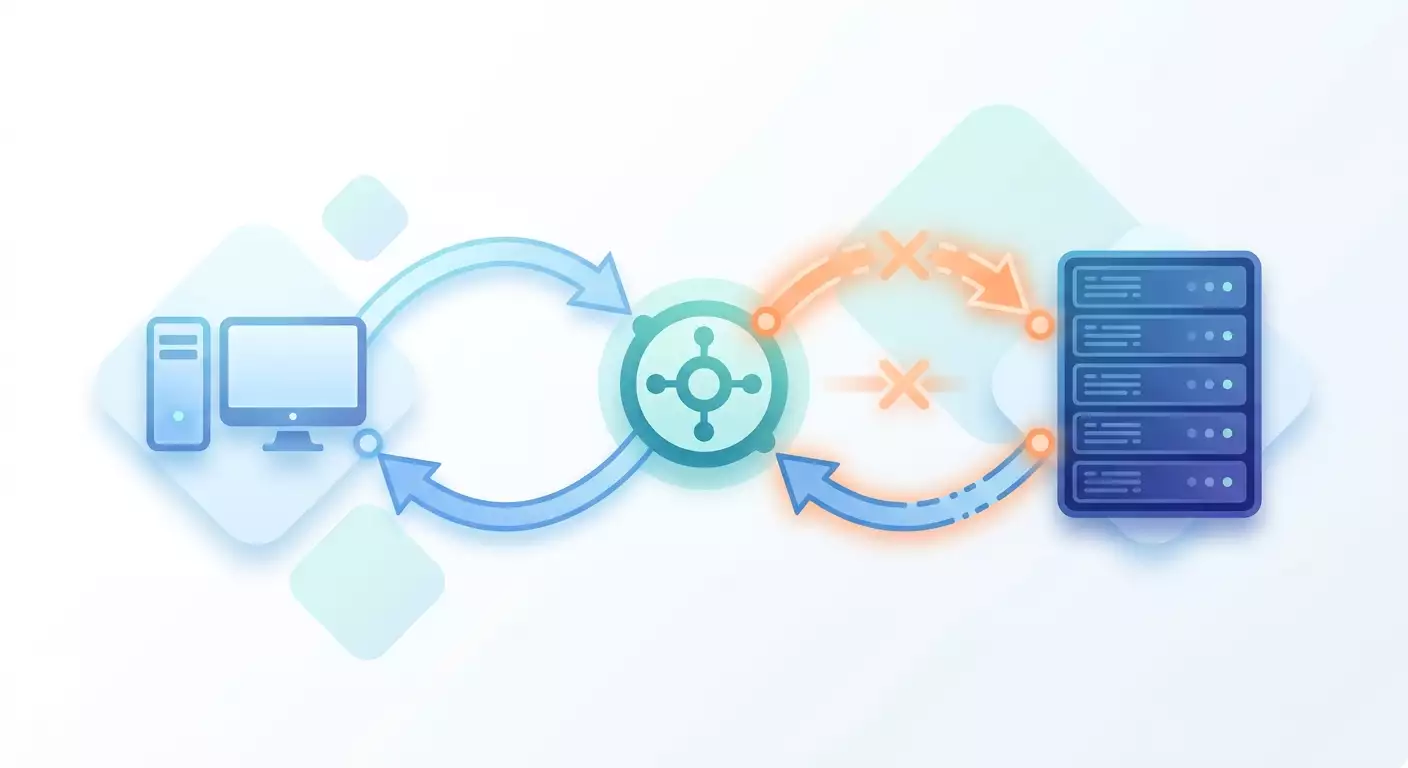
Table of contents
- Introduction: why you need this guide and what you'll get
- Preliminary setup: tools and access
- Basic concepts in plain language
- Step 1: how to tell a proxy error from a target website error
- Step 2: error 407 proxy authentication required
- Step 3: error 502 from the proxy
- Step 4: error 504 and timeouts
- Step 5: the tunnel connection failed error and the connect method
- Step 6: error 403 from the proxy
- Step 7: connection drop without a response — connection reset and eof
- Step 8: practice — reading curl -v line by line
- Step 9: quick diagnostic table — symptom, cause, check
- Verifying the result: the diagnostician's checklist
- Common mistakes and solutions
- Additional capabilities for advanced users
- Faq: common diagnostic questions
- Conclusion: what you've mastered and where to go next
Proxy errors scare you with their suddenness. A request worked just a moment ago, and now you're staring at a mysterious 407, 502, or a tunnel connection failed message. The good news: every such error has a clear and logical cause. This guide will teach you to read these messages like an open book.
Introduction: Why You Need This Guide and What You'll Get
Working with proxies is like a phone call through an interpreter. Your client talks to the proxy, the proxy talks to the target website, and the answer comes back along the same chain. When something breaks, it's important to figure out exactly where the problem occurred. That's what this guide is about.
What you'll get out of it:
- The ability to instantly tell a proxy error from a target website error.
- An understanding of what codes 407, 502, 504, 403, and the tunnel connection failed message actually mean.
- The skill to read curl -v output line by line, clearly separating the client-proxy-server segments.
- Ready-to-use diagnostic examples in curl, Python requests, and Node.js with real error texts.
- A quick symptom-cause-check diagnostic table you can print out and keep handy.
Who this guide is for. It's written for those just starting to work with proxies, but it also contains advanced details for experienced developers and automation specialists. If you're setting up parsers, working with multi-accounting, or simply want to understand why your script suddenly stopped getting data, this material is for you.
What you need to know beforehand. A basic understanding of what a URL, port, and HTTP request are is enough. No deep networking knowledge is required. We'll explain all terms in simple language as we go.
How much time it takes. The first read-through will take about 30-40 minutes. Practicing the examples on your own project will take another 20-30 minutes. After that, diagnosing a typical error will take you a minute or two.
An important clarification on the topic. In this guide, we only cover errors of the proxy layer itself. Code 429 (too many requests) and retry strategies are not covered here because that's a big separate topic with its own logic and approaches. 429 needs a separate material about retries and limits. Here we focus strictly on diagnosing proxy connection failures.
Preliminary Setup: Tools and Access
Before starting diagnostics, let's gather a toolkit. All of them are free and work on any operating system.
Required Tools
- Install curl. On most Linux and macOS systems it's already there. Check with the curl --version command. If you see a version number, you're all set.
- On Windows, curl is included in the system starting from modern versions. Open PowerShell and enter the same check command.
- Install Python version 3.10 or newer if you plan to use the requests examples. Check with the python --version command.
- Install the requests library with the pip install requests command in your terminal.
- Install Node.js version 20 or newer for the JavaScript examples. Check with the node --version command.
What to Prepare
- Your proxy details: host address, port, login and password if required.
- A test target address you'll be querying. For checks, it's convenient to use a simple site that returns information about the request.
- A text editor to save logs and diagnostic notes.
Tip: Create a separate text file called diagnostic-notes. Write down every command and its result there. This will save you when, half an hour later, you forget what you've already checked.
⚠️ Warning: Never save your proxy login and password in shared chats, public repositories, or screenshots. Leaking this data gives outsiders access to your traffic. Store them in a secure password manager.
✅ Check: At this point, you should be able to successfully run three version check commands: curl, python, and node. If even one doesn't work, go back and install the required tool.
Basic Concepts in Plain Language
To make your diagnostics informed, let's go over a few key terms. Don't skip this section, even if the terms seem familiar.
What a Proxy Really Is
A proxy is an intermediary between your program and the target website. Your request first goes to the proxy, and the proxy passes it on. The response comes back the same way. Because of this intermediation, any error can occur in three places: at your client, at the proxy itself, or at the target website.
The Key Division: Client, Proxy, Server
Remember the three links in the chain. The first link is your client — the program sending the request. The second link is the proxy, the intermediary. The third link is the target server, the site you want to reach. All diagnostics boil down to one question: which of the three links failed?
HTTP Codes in a Nutshell
Websites and proxies respond with numeric codes. Codes starting with 4 (like 407, 403) usually mean a problem on the request or access side. Codes starting with 5 (502, 504) mean a problem on the server or intermediary side. But there's a tricky subtlety here: code 502 can be sent by either the target website or the proxy itself. Learning to tell them apart is one of the main goals of this guide.
The Difference Between HTTP and HTTPS Through a Proxy
When you go to a regular HTTP site, the proxy sees the entire request. When you go to a secure HTTPS site, the proxy can't read the content. Instead, the client asks the proxy to create a secure tunnel using a special CONNECT command. That's why the tunnel connection failed error only appears on HTTPS. We'll cover this in detail separately.
Tip: Keep a simple picture in your head. The client knocks on the proxy's door. The proxy decides whether to let it in. Then the proxy knocks on the site's door. The site decides whether to respond. An error occurs at whichever knock failed.
Step 1: How to Tell a Proxy Error from a Target Website Error
Goal of this step: learn to figure out in seconds who's at fault — the proxy or the site. This is the fundamental skill that starts any diagnostics.
The Key Principle of Separation
The key question is: did your request reach the target website or did it get stuck at the proxy? If the request got stuck at the proxy, the proxy layer is at fault. If the request reached the site and the site responded, then the problem is on the site's side.
- Look at the error code and message text.
- Determine who sent this response: the proxy or the server. The response header and content will tell you.
- If the error text directly mentions the word proxy, tunnel, or the name of a proxy program, it's almost certainly the proxy layer's fault.
- If the response contains a familiar HTML page from the target site with its logo and design, then the request reached the site.
Three Quick Signs of a Proxy Error Specifically
- Code 407. This code exists only on proxies. A target website never sends it. See 407 — you're definitely at the proxy layer.
- The text tunnel connection failed or Received HTTP code from a proxy. These formulations are generated by the intermediary itself.
- Instant connection refusal. If the request fails almost immediately, before it could have reached the site, the problem is most likely between the client and the proxy.
Tip: Run a control experiment. Make the exact same request directly without a proxy. If it works directly but not through the proxy, then the problem is in the proxy layer or its interaction with the site. This eliminates half the hypotheses in one minute.
A curl Example for a Quick Check
Make a request through the proxy with the verbose output flag. The command looks like this: curl -v -x http://login:password@host:port https://example-site. The -v flag shows the entire dialogue. The -x flag sets the proxy. Watch the lines starting with arrows and asterisks. We'll cover them in detail in a separate step about reading logs.
⚠️ Warning: Never draw conclusions from a single request to an unstable site. Repeat the request two or three times. A one-off network glitch can look like a proxy error even though the proxy has nothing to do with it.
✅ Check: You should be able to answer, for any error message: was this sent by the proxy or the site? If you can — move on. If you're still unsure, go back to the three quick signs above.
Step 2: Error 407 Proxy Authentication Required
Goal of this step: learn to fix the most common proxy authorization error and understand how it differs from the similar code 401.
What 407 Means and How It Differs from 401
Code 407 says literally this: the proxy requires you to identify yourself with a login and password, but you either didn't do it or did it incorrectly. The key difference from 401: code 401 is sent by the target website when it requires authorization. Code 407 is sent specifically by the proxy. If you see 407, you didn't even reach the site — the intermediary stopped you at the entrance.
Where Exactly the Login and Password Get Lost
Most often, the data gets lost in three places.
- The login and password aren't passed in the command at all. The client knocked on the proxy's door anonymously, and the proxy turned it away.
- The data was passed, but with a typo. One extra space or the wrong keyboard layout — and authorization fails.
- The data was passed correctly, but the password contains special characters that break the connection string structure. This is the trickiest cause.
Special Characters in the Password and URL Encoding
The proxy connection string looks like this: login colon password at-sign host colon port. The problem is that the colon, at-sign, slash, and other characters have special meaning inside this string. If your password contains, say, an at-sign or a colon, the program will misunderstand it and break the string in the wrong place.
The solution is called URL encoding. Special characters are replaced with a code made of a percent sign and two digits or letters. For example, the at-sign becomes percent forty, the colon becomes percent three A, the slash becomes percent two F, and the space becomes percent twenty.
- Find all special characters in your password.
- Replace each with its URL code.
- Reassemble the connection string with the encoded password.
- Repeat the request.
Tip: Don't encode the password manually if it's complex. In Python, there's a function for encoding from the urllib.parse module called quote. Pass it the password, and it returns a safe version. This eliminates manual typing errors.
A curl Example
The real error text for incorrect authorization looks like this: curl (56) Received HTTP code 407 from proxy after CONNECT. Or, on an HTTP site: HTTP 407 Proxy Authentication Required. The correct command with authorization: curl -v --proxy-user login:password -x http://host:port https://example-site. Using the --proxy-user flag is often more reliable than putting the data directly in the address, because curl will handle the characters correctly on its own.
A Python requests Example
In requests, the proxy is set via a dictionary. The keys are http and https, the values are connection strings. If the password contains special characters, wrap it in the quote function. A typical error in the response object: response.status_code will return 407, and the text will mention Proxy Authentication Required. Check the status code specifically, not just the text.
A Node.js Example
In Node, when using popular clients, the proxy is set via a special agent. The real error looks like an object with a statusCode field equal to 407 or as a rejected promise with a message about tunnel authorization failure. Make sure you're passing the proxy authorization header, not the site authorization header — these are different things.
⚠️ Warning: The authorization header for the proxy and the authorization header for the site are two different headers. One is called Proxy-Authorization, the other is Authorization. If you mix them up, you'll get either a 407 from the proxy or a 401 from the site. Check which header your library is sending.
✅ Check: After fixing the authorization, the response code should change from 407 to something else. Even if the site responds with its own error, that's progress: you passed the proxy and reached the site.
Step 3: Error 502 from the Proxy
Goal of this step: learn to understand when 502 means a target site problem and when it's a failure of the proxy channel itself.
What 502 Means
Code 502 is called Bad Gateway. It says that the intermediary tried to reach the next link but got an unclear or broken response. The problem is that 502 can come in two completely different situations, and they look similar from the outside.
When the Target Host Is at Fault
The first situation: the proxy successfully connected to the target site, but the site returned garbage, dropped the connection, or couldn't get a response from its own backend. In this case, the proxy dutifully passed you the 502 as a statement: I reached the site, but the site responded badly.
- Make the same request directly without a proxy.
- If the site also responds with 502 or hangs when accessed directly, then the site is at fault, not the proxy.
- In this case, changing the proxy is useless. The problem is on the target's side.
When the Channel Itself Is at Fault
The second situation: the proxy itself is unstable, its upstream channel broke, or the proxy couldn't even establish a proper connection to the site. Then 502 is a sign of a sick intermediary.
- Make a request through the same proxy to a known-stable site.
- If even the stable site returns 502, then the problem is in the proxy channel.
- Try a different proxy or a different node if you have one.
Tip: The cross-check method works flawlessly. Change one variable at a time. First, fix the proxy and change the site. Then fix the site and change the proxy. The intersection of results will reveal the culprit.
Real Error Texts
In curl, you'll see an HTTP response with code 502 and often an HTML page saying Bad Gateway. Sometimes the response headers show a sign of which server sent the response. In Python requests, it's response.status_code equal to 502. In Node, it's a statusCode field equal to 502. Pay attention to the response body: a styled page from the target site indicates the request reached the site, while a terse technical page often comes from the proxy.
⚠️ Warning: Don't rush to blame the proxy on the first 502. Target sites return 502 very often, especially under load. Always make a control request directly before changing proxy settings.
✅ Check: You should be able to confidently say, based on the results of two cross-requests: is this 502 from the site or from the proxy? If you're not there yet, repeat both control requests and compare the results.
Step 4: Error 504 and Timeouts
Goal of this step: learn to distinguish two fundamentally different types of timeout and configure them correctly in your client.
What 504 Means
Code 504 is called Gateway Timeout. It says that the intermediary waited too long for a response from the next link and gave up. But to understand exactly where the time got stuck, you need to separate two types of timeout.
Connect Timeout vs. Read Timeout
There are two completely different waiting moments.
- Connect timeout — this is the time to establish the connection itself. The client is trying to reach the proxy, or the proxy is trying to reach the site. If the connection isn't established within the allotted time, the connect timeout fires. This is usually a sign that the address is unreachable or the port is closed.
- Read timeout — this is the wait time for a response after the connection is already established. The connection exists, the request went out, but data isn't coming back. This is usually a sign that the site is thinking for a long time or is stuck processing.
How to Separate Them in Your Client
Proper diagnostics start with configuring these two timeouts separately. Then you'll immediately understand at which stage the time got stuck.
- In curl, use the --connect-timeout flag to limit the connection establishment time. Separately, the --max-time flag limits the total time of the whole operation.
- In Python requests, the timeout parameter can be passed as a tuple of two numbers. The first number is the connect timeout, the second is the read timeout. For example, a timeout of five and thirty seconds.
- In Node, most clients have separate settings for connection time and response wait time. Set them to different values so you can see which one fired.
How to Read the Result
If the connect timeout fired, you didn't even establish a connection. Check proxy availability and port correctness. If the read timeout fired, the connection existed but the response didn't come in time. Check whether the site is overloaded and whether your request is too heavy.
Tip: Set the connect timeout small, around five seconds. Connection establishment either happens quickly or doesn't happen at all. But set the read timeout with a margin, because some pages honestly take longer to prepare a response.
⚠️ Warning: A read timeout that's too small leads to false errors. You'll be cutting off normal but slow responses and thinking the proxy is broken. Always check whether you yourself set too strict a limit.
Real Error Texts
In curl, the connect timeout looks like a Connection timed out message on stderr. In Python requests, it's a ConnectTimeout exception for the connection and a ReadTimeout for the response. The exception name alone tells you which stage failed. In Node, you'll see an error with code ETIMEDOUT or a separate message about exceeding the response time.
✅ Check: After configuring separate timeouts, you should get a clear indication in the error: is this a connection timeout or a read timeout. If you only see the general word timeout without clarification, then the timeouts aren't separated yet.
Step 5: The tunnel connection failed Error and the CONNECT Method
Goal of this step: understand why this error only appears on secure sites and how to diagnose it.
Why the Error Only Comes on HTTPS
When you go to a regular HTTP site, the proxy simply forwards your request. But when you go to an HTTPS site, the content is encrypted, and the proxy can't read it. So the client first sends the proxy a special CONNECT command with the site's address. This command means a request: please build me a secure tunnel to this address, and I'll communicate with the site directly through you.
If the proxy, for some reason, couldn't build the tunnel, it returns a tunnel connection failed error. On regular HTTP, there's no such command, so this error doesn't occur on HTTP. That's your main identifying sign.
Main Causes of Tunnel Failure
- The proxy couldn't connect to the target address. The site might be unavailable or the port closed.
- The proxy forbids the CONNECT method to this address or port. Some proxies only allow certain ports.
- Authorization failed. In this case, you'll often see a combination: first a CONNECT attempt, then a 407.
- The proxy is overloaded, or its upstream channel broke at the moment of building the tunnel.
How to Diagnose
- Run curl -v to an HTTPS address and find the line with CONNECT in the output. It shows the moment the tunnel is requested.
- Look at what response came back to the CONNECT. A response with code 200 means the tunnel is built. Any other code means failure.
- If you see 407 nearby, then the problem is in authorization, not the tunnel itself. Go back to the step about 407.
- If you see a connection refusal, then the proxy couldn't reach the site.
Tip: Check that you're connecting to an allowed port. The classic secure connection ports are usually allowed, but many proxies block non-standard ports. Switching to a standard port often solves the problem instantly.
Real Error Texts
In curl, it's a message like curl (56) Received HTTP code from proxy after CONNECT or a direct tunnel connection failed. In Python requests, it's a ProxyError exception with a nested message about a failed tunnel. In Node, it's an error with text about the tunnel connection failing to establish, often with the status code from the proxy.
⚠️ Warning: Don't confuse a tunnel failure with a certificate error. If the tunnel is built but then complains about the site's secure certificate — that's a different problem, unrelated to the proxy layer. Look at exactly which stage the error occurred at: before or after the response to CONNECT.
✅ Check: You should find the line with the response to CONNECT in the curl output and understand, based on its code, whether the tunnel was built. A 200 response means the tunnel exists. Any other code — look for the cause of the failure.
Step 6: Error 403 from the Proxy
Goal of this step: learn to recognize when 403 is sent by the proxy due to limits, geography, or a forbidden port.
What 403 Means in the Context of a Proxy
Code 403 is called Forbidden. Usually, the target website sends this code when it blocks access. But the proxy can also send 403 when it decides not to let your request through. The task is to figure out who exactly issued the ban.
Three Causes of a 403 from the Proxy
- Limits. The proxy may limit the number of requests, the amount of traffic, or the number of simultaneous connections. When exceeded, it returns 403 as a refusal to serve.
- Geographic restriction. Some proxies only allow access to certain regions or, conversely, prohibit certain directions. A request in a prohibited direction gets a 403.
- Forbidden port. The proxy may only allow standard ports. Connecting to a non-standard port results in a refusal.
How to Tell a Proxy 403 from a Site 403
- Look at the response body. A styled page from the target site with its own design means the site issued the ban.
- A terse technical page or a mention of the proxy in the text means the intermediary issued the ban.
- Make the same request directly. If the site returns 403 directly and also through the proxy, then the site is at fault.
- If the site opens directly but returns 403 through the proxy, look for the cause in the proxy's limits or restrictions.
Tip: Check the documentation or control panel of your proxy for limits. Often, the dashboard shows whether traffic is exhausted or a request limit is reached. This is the fastest way to confirm the cause.
⚠️ Warning: Don't try to bypass proxy limits with clever tricks. If you've hit a plan restriction, the right solution is to upgrade the plan or optimize the number of requests. Bypassing a service's technical restrictions violates the terms of use.
Real Error Texts
In curl, it's an HTTP 403 Forbidden response with a body that hints at the source. In Python requests, it's response.status_code equal to 403. In Node, it's statusCode equal to 403. Always analyze the response body together with the code, because it's the body that reveals the true issuer of the ban.
✅ Check: You should be able to determine, from the response body and the result of a direct request, who sent the 403. If it's the proxy — check limits, geo, and port. If it's the site — the cause isn't in the proxy layer.
Step 7: Connection Drop Without a Response — connection reset and EOF
Goal of this step: learn to diagnose the most mysterious cases, when there's no response at all and the connection just drops.
What These Errors Are
Sometimes you don't get any HTTP code. Instead, the connection suddenly drops. There are two typical manifestations.
- Connection reset. Literally — the connection was reset. One of the parties abruptly closed the channel without finishing the exchange. As if the other party hung up mid-sentence.
- EOF, unexpected end of file. Literally — unexpected end of data. The client was waiting for the rest of the response, but the data stream suddenly ended.
What to Look at First
- Determine the moment of the drop. Did it happen before the response to CONNECT, during the request transmission, or during the response reception? The curl -v output will show the last successful line before the drop.
- If the drop happened at the very beginning, when connecting to the proxy, the problem is most likely in the proxy itself or the network path to it.
- If the drop happened after the tunnel was established, during communication with the site, the problem is more likely on the site's side or in an unstable channel.
- Repeat the request several times. A consistently repeating drop indicates a systemic cause. A random one indicates temporary network instability.
Common Causes
- The proxy is overloaded and forcibly closes extra connections.
- The proxy's upstream channel is unstable and breaks.
- The target site closes the connection due to its own restrictions.
- Network problems between the links in the chain.
Tip: With random drops, keep statistics. Make, say, twenty requests in a row and count how many dropped. If one in twenty drops, that's tolerable instability. If half of them do, then there's a systemic problem that needs solving.
Real Error Texts
In curl, it's Connection reset by peer or Empty reply from server. In Python requests, it's a ConnectionError exception with a nested message about connection reset. In Node, it's an error with code ECONNRESET. These messages don't contain an HTTP code precisely because the HTTP exchange didn't complete normally.
⚠️ Warning: A drop without a response is easily confused with a timeout. The difference is that with a timeout, the client itself stops waiting, while with a reset, the other party actively closes the channel. Look at the error text: the word reset indicates an active reset, the word timeout indicates expired waiting.
✅ Check: You should be able to determine, from the last line of the curl output, at which stage the connection dropped. This immediately narrows the suspects down to one or two links.
Step 8: Practice — Reading curl -v Line by Line
Goal of this step: learn to see the boundary between client, proxy, and server in the curl output. This is the crown of the whole guide.
What the Symbols at the Start of Lines Mean
The curl -v output uses special symbols at the start of each line, and this is your main key to understanding.
- An asterisk at the start of a line means an informational message from curl itself. These are the client's comments about what it's doing: establishing a connection, building a tunnel, checking a certificate.
- A right arrow means data the client is sending to the proxy or server. This is the outgoing request.
- A left arrow means data the client is receiving in response. This is the incoming response.
Where the Client-Proxy-Server Boundary Lies
Let's break down a typical path to a secure site through a proxy. First, curl reports with an asterisk that it's connecting to the proxy at the specified address and port. This is the client-proxy segment. Then comes an outgoing arrow with the CONNECT command — the client asks the proxy to build a tunnel. Next is an incoming arrow with the response to CONNECT — this is the proxy's response. If the code is 200, the tunnel is built, and the boundary shifts: from here on, the entire exchange goes client-server through the tunnel.
Breaking Down a Real Log
Let's imagine you see this sequence. A line with an asterisk: connecting to the proxy address and port. This means the client found the proxy. The next line with an asterisk: connection to the proxy established. Great, the first segment is passed. Next, an outgoing arrow: CONNECT to the target site's address. The client requested a tunnel. Then an incoming arrow: the response to CONNECT with a code. Here's the key fork.
- If the response code to CONNECT is 200, the tunnel is built. Read on.
- If the code is 407, the proxy requires authorization. The problem is at the proxy layer, the client-proxy segment. Go to the step about 407.
- If the line says tunnel connection failed, the proxy couldn't build the tunnel. The cause is between the proxy and the site.
Let's assume the tunnel is built. Next come asterisks about checking the secure connection with the site. This is already the client-server segment. Then an outgoing arrow with the actual request: the request line and headers. Note: until this moment, the site never saw your request, it was busy building the tunnel. And finally, an incoming arrow with the site's response code. Here begins the target site's area of responsibility.
How to Apply This for Diagnostics
- Find the line about establishing a connection with the proxy. If it's missing or has an error, the problem is between the client and the proxy.
- Find the response to CONNECT. Use its code to determine whether the proxy layer was passed.
- Find the incoming arrow with the site's response. If it's there, then you reached the site, and any error here is already the site's area.
- The last line before the drop always hints at which segment everything broke down on.
Tip: Read the output from top to bottom as a chronicle of the request's journey. Each line is a step of the path. As soon as you reach a line with an error or a drop, look at the previous successful line. It will point to the last living link.
⚠️ Warning: The -v flag shows headers, including the proxy authorization line. If you share a log with someone for help, be sure to redact the line with authorization data. Otherwise, you'll reveal your login and password.
✅ Check: Take any of your curl -v logs and mark it up: where's the client-proxy segment, where's the response to CONNECT, where does the site's area begin. If you can confidently draw these boundaries, you've mastered the main diagnostic skill.
Step 9: Quick Diagnostic Table — Symptom, Cause, Check
Goal of this step: get a ready reference you can turn to at the moment of any error.
How to Use the Table
Find your symptom in the first column. Read the probable cause. Perform the action from the third column first — it's most likely to confirm or disprove the cause.
Symptom: Code 407
Probable cause: proxy authorization data not passed or incorrect, or special characters in the password broke the connection string. What to check first: the correctness of the login and password, as well as URL-encoding of special characters in the password.
Symptom: tunnel connection failed on HTTPS
Probable cause: the proxy couldn't build a tunnel to the site, possibly due to a forbidden port or site unavailability. What to check first: the response to CONNECT in the curl -v output and whether the target port is allowed.
Symptom: Code 502
Probable cause: a bad response from the next link, either the site or an unstable proxy channel is at fault. What to check first: a cross-check — the same site directly and the same proxy to a stable site.
Symptom: Code 504
Probable cause: the wait time expired, need to determine — connection or response. What to check first: separate connect timeout and read timeout to see which stage dragged on.
Symptom: Code 403 through the proxy
Probable cause: proxy limits, geographic restriction, or a forbidden port. What to check first: the response body for the source of the ban and the proxy control panel for exhausted limits.
Symptom: connection reset or ECONNRESET
Probable cause: one of the parties forcibly closed the connection, often an overloaded proxy or unstable channel. What to check first: the stage of the drop by the last line of curl -v and the repeatability of the problem over a series of requests.
Symptom: EOF, empty reply
Probable cause: the data stream broke before the response was complete. What to check first: at which segment the drop occurred — before or after the response to CONNECT.
Symptom: connect timeout
Probable cause: unable to establish a connection, address unreachable or port closed. What to check first: the availability of the proxy address and the correctness of the port.
Symptom: read timeout
Probable cause: the connection exists but no response comes, the site is processing for a long time or is stuck. What to check first: whether your read timeout is too small and whether the site is overloaded.
Tip: Print this table or save it in your notes. In the moment of a real error under pressure, it's easy to forget the logic. A ready reference saves nerves and time.
✅ Check: Run each of your recent errors through the table. For any of them, you should know the first check action.
Verifying the Result: The Diagnostician's Checklist
Make sure you've mastered all the key skills. Go through the checklist.
- You can answer in seconds who sent the error — the proxy or the site.
- You understand the difference between 407 and 401 and can fix authorization, including special characters in the password.
- You distinguish a 502 from the site vs. a 502 from the proxy through cross-checking.
- You separate connect timeout and read timeout and know what each means.
- You understand why tunnel connection failed only happens on HTTPS and can read the response to CONNECT.
- You recognize the three causes of a 403 from the proxy: limits, geo, and port.
- You diagnose connection drops by the stage at which they occurred.
- You read curl -v output line by line and draw the client-proxy-server boundaries.
How to Test Yourself
- Take three real logs with different errors.
- For each, determine the guilty link in one minute.
- Name the first check action from the table.
- If you handled all three, you've mastered diagnostics.
✅ Check: The measure of success is that you no longer panic at the sight of a proxy error, but calmly break it down by the links in the chain.
Common Mistakes and Solutions
Problem: I immediately change the proxy on any error
Cause: no habit of cross-checking. Solution: always make a control request directly and to a stable site before changing settings. Half of the errors turn out to be on the site's side.
Problem: a password with an at-sign breaks the connection
Cause: the special character isn't encoded and breaks the string. Solution: apply URL encoding to the password or use a separate authorization parameter instead of putting it in the address.
Problem: I confuse 407 and 401
Cause: I don't distinguish proxy authorization from site authorization. Solution: remember — 407 is always from the proxy, 401 is always from the site. Check which header you're sending: Proxy-Authorization or Authorization.
Problem: a too-strict timeout cuts off normal requests
Cause: the read timeout is set too small. Solution: separate the connect and read timeouts, give the read one a margin for slow pages.
Problem: tunnel connection failed on a non-standard port
Cause: the proxy forbids CONNECT to that port. Solution: use a standard port for secure connections or check the list of allowed ports with the proxy.
Problem: I see a 502 and think the proxy is dead
Cause: I didn't check who sent the 502. Solution: cross-check. Often a 502 comes from an overloaded target site, while the proxy is fine.
Problem: I revealed my login and password in a log
Cause: I shared the curl -v output without redacting it. Solution: always redact the authorization line before sending a log to anyone, and change the compromised data if possible.
Problem: I treat a connection drop as a timeout
Cause: I don't distinguish reset from timeout. Solution: look at the error text. Reset — an active closure by the other party, timeout — your wait expiring. These are different causes.
Additional Capabilities for Advanced Users
Permanent Logging
Set up saving detailed logs of all proxy requests in your application. Then, when an error occurs, you'll already have a history, and you won't have to reproduce the problem again. Record the response code, the stage of the drop, and the execution time.
Automatic Error Classification
In code, you can create a function that immediately assigns an error to the right link based on the exception type and response code. For example, ConnectTimeout — the connection segment, ReadTimeout — the response segment, ProxyError with a tunnel — the proxy layer. This speeds up reaction in automated systems.
Collecting Stability Statistics
Keep metrics: the share of successful requests, the share of drops, the average response time. A sharp deterioration in metrics will hint at a problem before you encounter it manually.
Tip: Separate metrics by link. Count connection establishment errors and response-stage errors separately. That way you'll immediately see what exactly is degrading — access to the proxy or communication with sites.
⚠️ Warning: When building automatic handling, don't turn it into endless repeats of the same request. Retry logic is a separate big topic with its own rules, related in particular to code 429. It has its own dedicated material and should be studied separately.
FAQ: Common Diagnostic Questions
How do I quickly figure out that the proxy is at fault, not my code?
Make the same request directly without a proxy. If it works directly but not through the proxy, the problem is in the proxy layer or its interaction with the site. This eliminates half the hypotheses in a minute.
Why do I get a 407 even though I entered the correct password?
Most likely the password contains special characters that break the connection string. Apply URL encoding to the password or pass the data through a separate authorization parameter instead of putting it in the address.
Does code 502 always mean the proxy is broken?
No. A 502 can also be sent by the target site if it itself responded badly. Do a cross-check: the same site directly and the same proxy to a stable site. The intersection of results will reveal the culprit.
What's the difference between connect timeout and read timeout?
Connect timeout is the wait for the connection to be established. Read timeout is the wait for a response after the connection is already established. Separate them in your client, and you'll immediately see which stage dragged on.
Why does tunnel connection failed only happen on HTTPS?
Because for secure sites, the client asks the proxy to build a tunnel using the CONNECT command. On regular HTTP, there's no such command. If the tunnel wasn't built, this error comes, and it's only possible on HTTPS.
How do I tell a 403 from the proxy from a 403 from the site?
Look at the response body. A styled site page means the site's ban. A technical page or a mention of the proxy means the intermediary's ban. Confirm with a direct request to the site.
What should I do about random connection drops?
First determine repeatability: make a series of requests and count the share of drops. Isolated drops are tolerable network instability. Massive drops are a systemic problem with the proxy or channel.
How do I safely share a curl -v log for help?
Be sure to redact the line with proxy authorization and any sensitive headers before sending. Otherwise, you'll reveal your login and password. If in doubt, change the compromised data.
Why do my normal requests sometimes time out?
Probably the read timeout is set too strictly, and you're cutting off slow but healthy responses. Increase the read timeout with a margin, and keep the connect timeout small.
Where can I read about code 429 and retries?
Code 429 and retry strategies are a separate big topic not directly related to proxy layer failures. It has its own dedicated material; study it separately from proxy error diagnostics.
Conclusion: What You've Mastered and Where to Go Next
Congratulations. You've gone from confusion before mysterious codes to confident step-by-step diagnostics. Let's recall what's now in your arsenal.
Summary of actions completed. You've learned to split the chain into three links — client, proxy, and server — and determine exactly where the error occurred. You've dealt with code 407 and proxy authorization, including the tricky special characters in the password. You've understood the dual nature of 502 and the cross-check method. You've mastered separating connect and read timeouts with 504. You've figured out the CONNECT method and the tunnel connection failed error on HTTPS. You've learned to recognize the three causes of a 403 from the proxy and diagnose connection drops by stage. And finally, you've mastered the main skill — reading curl -v output line by line with precise boundaries between the links.
What to do next. Reinforce the skill in practice. Every time you encounter a proxy error, don't guess — calmly break it down by link using the diagnostic table. After a week of such practice, diagnostics will become automatic.
Where to develop. The next logical step is to study the topic of code 429 and sound retry strategies, which has its own dedicated material. Then dive into automatic error classification in code and collecting stability metrics. This will turn you from someone who puts out fires into an engineer who foresees problems in advance.
Tip: Bookmark this guide and the diagnostic table. Come back to them with every new error until the logic becomes second nature. Confidence in diagnostics comes precisely through repetition. You've got this.